
Best Audio Gap Remover Tools: Complete Guide 2026
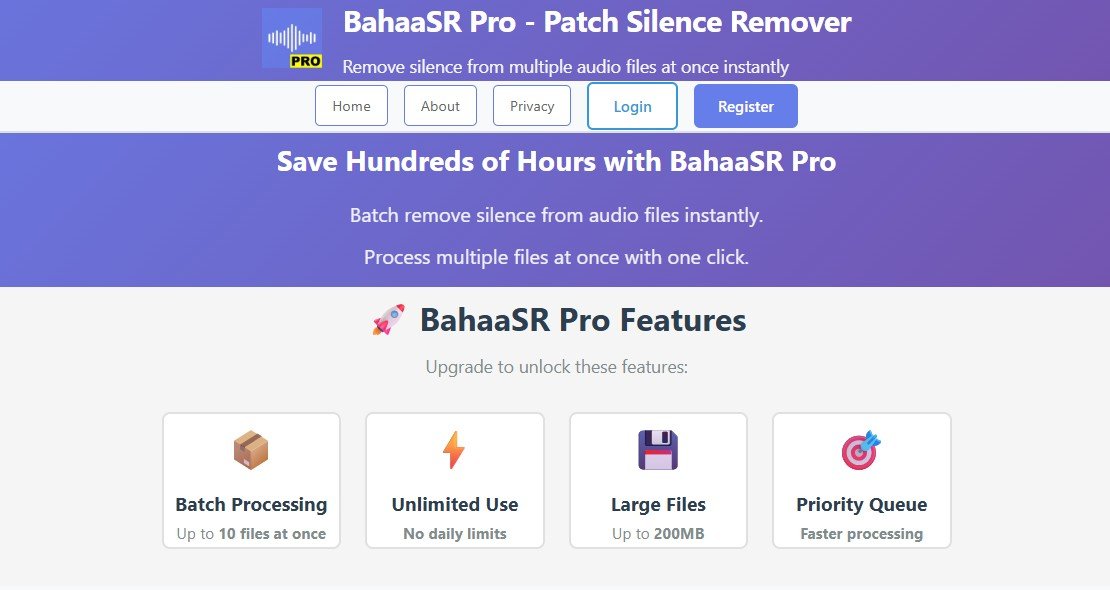
Looking for the best audio gap remover? This comprehensive guide covers everything you need to know about removing gaps, pauses, and unwanted silence from your audio files in 2026.
What is an Audio Gap Remover?
An audio gap remover is a tool or software that automatically detects and removes unwanted gaps, pauses, and silent sections from audio recordings. Unlike manual editing, gap removers use algorithms to identify silence based on volume thresholds and duration, making the process fast and consistent.
🎯 Quick Definition
Audio gaps are sections in audio files where volume drops below a certain threshold, creating pauses or silence. These can be intentional (like pauses between sentences) or unintentional (dead air, recording delays, or technical issues).
Why You Need an Audio Gap Remover
Removing audio gaps is essential for various content types and offers multiple benefits:
Automate what would take hours of manual editing
Remove 30-60% of file size by eliminating gaps
Improved pacing keeps audiences engaged
Create polished, broadcast-ready content
Common Use Cases
- Podcasts: Remove awkward pauses and dead air between segments
- Audiobooks: Tighten narration for better flow
- Lectures: Remove long pauses during presentations
- Music Production: Clean up recording starts and ends
- Video Content: Improve dialogue pacing and reduce video file sizes
- Voice-overs: Create tight, professional voice recordings
Types of Audio Gaps
Understanding the different types of audio gaps helps you choose the right removal strategy:
1. Complete Silence (Digital Zero)
Total absence of sound where the waveform is completely flat. These are the easiest to detect and remove.
2. Room Tone / Background Noise
Low-level ambient noise present when no one is speaking. Requires threshold-based detection.
3. Intentional Pauses
Brief pauses between words or sentences that contribute to natural speech rhythm. Should often be preserved or only slightly shortened.
4. Dead Air / Long Gaps
Extended periods of silence due to recording issues, forgotten mic mutes, or awkward pauses. These should always be removed.
Best Audio Gap Remover Tools 2026
🚀 BahaaSR Pro
Type: Web-based
Best For: Everyone
Price: From $3/month
Key Feature: Batch processing up to 10 files
✓ 200MB files
✓ Instant results
🎵 Audacity
Type: Desktop software
Best For: Basic editing
Price: Free
Key Feature: Truncate Silence effect
✗ Manual process
✗ No batch mode
💻 FFmpeg
Type: Command line
Best For: Developers
Price: Free
Key Feature: Silenceremove filter
✗ Technical
✗ No GUI
🎚️ Adobe Audition
Type: Professional DAW
Best For: Professionals
Price: $22.99/month
Key Feature: Delete Silence function
✗ Expensive
✗ Learning curve
How to Remove Audio Gaps: Step-by-Step Guide
Method 1: Using BahaaSR Pro (Recommended)
The easiest and fastest way to remove audio gaps:
- Visit https://pro.bahaasr.com
- Upload your audio file(s) - support for up to 10 files at once
- Click "Process" - automatic gap detection and removal
- Download your gap-free audio files
- No software installation required
- Process files up to 200MB each
- Batch processing saves hours
- Advanced algorithms preserve audio quality
- Works on any device with a browser
Method 2: Using Audacity
For those who prefer free desktop software:
- Download and install Audacity from audacityteam.org
- Open your audio file in Audacity
- Select the entire track (Ctrl+A or Cmd+A)
- Go to Effect → Truncate Silence
- Adjust settings:
- Threshold: -60 dB
- Duration: 0.5 seconds
- Truncate to: 0.2 seconds
- Click OK and wait for processing
- Export your processed audio
Method 3: Using Adobe Audition
- Open your audio file in Adobe Audition
- Go to Edit → Delete Silence
- Configure settings:
- Signal: Below -60 dB
- Minimum Silence Duration: 0.5 seconds
- Leave: 0.2 seconds
- Preview to ensure natural-sounding results
- Apply the effect
Understanding Gap Removal Parameters
To effectively remove audio gaps, you need to understand these key parameters:
Threshold Level (in Decibels)
The volume level below which audio is considered "silence" or a "gap":
- -70 dB: Very conservative - only complete silence
- -60 dB: Standard for speech - recommended starting point
- -50 dB: Aggressive - catches room tone and quiet sounds
- -40 dB: Very aggressive - may cut off quiet speech
Minimum Gap Duration
How long a quiet section must be before it's removed:
- 0.1 seconds: Very tight editing, removes almost all pauses
- 0.3 seconds: Balanced - keeps natural rhythm
- 0.5 seconds: Recommended for most content
- 1.0 seconds: Conservative - only removes long gaps
Leave Duration
How much silence to leave after gap removal:
- 0 seconds: Complete removal (can sound rushed)
- 0.1-0.2 seconds: Tight but natural
- 0.3-0.5 seconds: Natural speech rhythm
Comparing Audio Gap Remover Solutions
| Feature | BahaaSR Pro | Audacity | FFmpeg | Adobe Audition |
|---|---|---|---|---|
| Ease of Use | ★★★★★ | ★★★☆☆ | ★☆☆☆☆ | ★★★☆☆ |
| Processing Speed | Very Fast | Medium | Fast | Medium |
| Batch Processing | Yes (10 files) | No | With scripting | Limited |
| Max File Size | 200MB | Unlimited | Unlimited | Unlimited |
| Installation | None (web) | Required | Required | Required |
| Price | $3/month | Free | Free | $22.99/month |
| Best For | Everyone | Basic users | Developers | Professionals |
Best Practices for Audio Gap Removal
1. Start with Conservative Settings
Begin with moderate threshold (-60 dB) and longer minimum duration (0.5 seconds). You can always make it more aggressive if needed.
2. Always Preview Before Finalizing
Listen to a processed sample before applying to entire files or batches. Ensure the result sounds natural and professional.
3. Keep Original Files
Always maintain backups of your original audio files. This allows you to re-process with different settings if needed.
4. Consider Your Content Type
- Podcasts: -60 dB threshold, 0.5s minimum, leave 0.2s
- Audiobooks: -60 dB threshold, 0.3s minimum, leave 0.1s
- Music: -70 dB threshold, 1.0s minimum, preserve natural feel
- Lectures: -60 dB threshold, 0.5s minimum, leave 0.3s
5. Remove Noise First
For best results, apply noise reduction before gap removal. This ensures cleaner gap detection and better overall quality.
6. Don't Over-Process
Natural pauses are important for comprehension and listening comfort. Removing ALL gaps can make content sound rushed and difficult to follow.
Common Challenges and Solutions
Challenge 1: Removing Too Much
Problem: Audio sounds rushed and unnatural
Solution: Increase minimum duration threshold to 0.5-1.0 seconds and increase "leave duration" to 0.2-0.3 seconds
Challenge 2: Not Removing Enough
Problem: Long awkward pauses still present
Solution: Lower threshold to -50 dB or decrease minimum duration to 0.3 seconds
Challenge 3: Cutting Off Words
Problem: Beginning or end of words getting cut
Solution: Increase threshold to -70 dB (more conservative) or add padding time before/after gaps
Challenge 4: Inconsistent Results
Problem: Some files process well, others don't
Solution: Normalize audio levels first, then apply gap removal with consistent settings
Challenge 5: Processing Large Files Takes Too Long
Problem: Files take forever to process manually
Solution: Use BahaaSR Pro's batch processing to handle multiple large files simultaneously
Advanced Gap Removal Techniques
1. Multi-Pass Processing
Apply gap removal in multiple passes for optimal control:
- First Pass: Remove start/end silence completely
- Second Pass: Remove long internal gaps (1+ seconds)
- Third Pass: Fine-tune shorter gaps (0.3-1 second)
2. Adaptive Threshold Detection
For recordings with varying volume levels, use adaptive thresholds that adjust based on the local audio level rather than a fixed dB value.
3. Crossfade Gap Joins
When rejoining audio after gap removal, apply short crossfades (10-50ms) to prevent clicks or pops at edit points.
4. Preserve Specific Sections
For music or dramatic content, manually mark sections to preserve before applying automated gap removal to the rest.
🎓 Pro Workflow
- Record with consistent gain levels
- Apply noise reduction first
- Normalize audio to optimal levels
- Remove gaps with appropriate settings
- Add gentle compression if needed
- Final output formatting
Audio Gap Removal for Different File Formats
MP3 Files
Most common format. Gap removal works perfectly, but be aware that MP3 is lossy - avoid multiple saves of the same file.
WAV Files
Uncompressed format. Best for gap removal as there's no quality loss, but files are larger.
M4A/AAC Files
Good quality at smaller sizes than MP3. Excellent for gap removal with maintained quality.
FLAC Files
Lossless compression. Perfect for archival and gap removal without any quality concerns.
Ready to Remove Audio Gaps?
Try BahaaSR Pro's advanced audio gap remover today. Process up to 10 files at once with intelligent gap detection and removal.
Start Removing Gaps Now →Frequently Asked Questions
What's the difference between gap removal and silence removal?
They're essentially the same thing. "Gap removal" typically refers to removing pauses between words or sections, while "silence removal" is a broader term that includes any quiet or silent sections. Most tools handle both identically.
Will removing gaps affect audio quality?
No, properly configured gap removal only removes quiet sections without affecting the quality of the remaining audio. BahaaSR Pro uses lossless processing to maintain original audio quality.
Can I remove gaps from multiple files at once?
Yes! BahaaSR Pro allows batch processing of up to 10 audio files simultaneously, saving hours compared to processing files individually.
How much time can I save using an audio gap remover?
Manual gap removal can take 30-60 minutes for a 1-hour recording. Automated tools like BahaaSR Pro process the same file in 2-5 minutes, saving significant time.
What's the best threshold setting for removing audio gaps?
For most speech content, -60 dB is the sweet spot. This removes obvious silence while preserving quiet speech and natural pauses. Adjust higher (-50 dB) for aggressive removal or lower (-70 dB) for conservative removal.
Can gap removal fix poor recording quality?
Gap removal helps improve pacing and flow, but it won't fix issues like background noise, poor mic quality, or distortion. Use noise reduction and other cleanup tools first.
Is there a free audio gap remover?
Yes, Audacity and FFmpeg are free options. However, BahaaSR Pro offers the best balance of ease-of-use, speed, and features starting at just $3/month with batch processing capabilities.
How do I avoid cutting off words when removing gaps?
Use a more conservative threshold (-70 dB instead of -60 dB) and ensure your minimum duration setting is at least 0.3 seconds. Also, add padding time (50-100ms) before and after detected gaps.
Conclusion
Audio gap removal is an essential technique for creating professional, polished audio content. Whether you're producing podcasts, audiobooks, lectures, or music, removing unnecessary gaps improves listening experience, reduces file sizes, and saves your audience time.
While free tools like Audacity and FFmpeg exist, they require technical knowledge and time-consuming manual processes. BahaaSR Pro offers the perfect solution with automated gap detection, batch processing, and professional results in minutes rather than hours.
Start using an audio gap remover today and experience the difference in your audio production workflow. Your ears (and your audience's) will thank you!